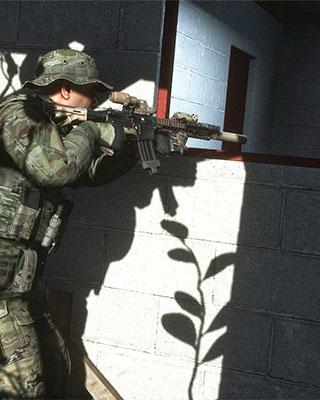

Mods for Ground Branch are distributed through the Steam Workshop. On the server you only enter the Workshop IDs into the file mods.txt – the server takes care of the rest on the next start.
Find the Workshop ID
-
Open the mod in the Workshop
Open the mod you want in the Ground Branch Workshop. -
Read the ID from the address bar
The Workshop ID is the number at the end of the address after?id=:https://steamcommunity.com/sharedfiles/filedetails/?id=1234567890In this example the ID is
1234567890.
Add the mods on the server
-
Stop the server
Stop your server via the dashboard. The mod list is only read on server start. -
Connect via SFTP
Connect to your server via SFTP. -
Open mods.txt
Open the following file. If it does not exist yet, create it:/GroundBranch/ServerConfig/mods.txt -
Enter the IDs
Enter exactly one Workshop ID per line:1234567890 9876543210 -
Start the server
Save the file and start your server. On startup it downloads the listed mods and places them in theGroundBranch/Modsfolder.
What players have to do
Nothing manually. When joining a server with mods, the Server Browser automatically performs a mod sync: the client subscribes to the required Workshop content and downloads it.
Remove or update mods
-
Stop the server
Stop your server via the dashboard. -
Remove the line
Delete the corresponding Workshop ID from themods.txt. -
Start the server
Start your server. Changes to the mod list only take effect after a restart – nothing happens while the server is running.
Troubleshooting
If the server does not load any mods, check the following:
- Does the
mods.txtcontain one ID per line, without commas, quotes or spaces? - Is it the ID of the Workshop item and not the one of its creator?
- Is the mod still available in the Workshop and compatible with the current game version?
- Was the server restarted after the change?
- If a mod keeps causing trouble, remove the IDs one at a time to narrow down which mod is responsible.