New

EmeraldHost 2.0 is here: faster, more intuitive, and made for everyone - the new panel!

Learn more
Guides
How to Change the Modpack on a Minecraft Java Edition Server

How to Change the Modpack on a Minecraft Java Edition Server

Change modpack on a Minecraft Java Edition server

2 min read
Oct 16, 2023

This guide is outdated and is waiting to be revised. Feel free to reach out to our support team or community Discord if you have a question about this article.

Modpacks

Modpacks in Minecraft are collections of mods, texture packs and configuration settings created by the Minecraft community or modders. These modifications and customizations change or enhance gameplay, graphics, game mechanics and more. Modpacks are usually put together in such a way that they work well together and offer a coherent gaming experience.

Select the modpack provided by EmeraldHost

  1. Open server administration
    To select a modpack, please visit the administration page of your Minecraft server on EmeraldHost.

  2. Find the modpack settings
    Navigate to the "Modpacks" tab in the right sidebar and select it.
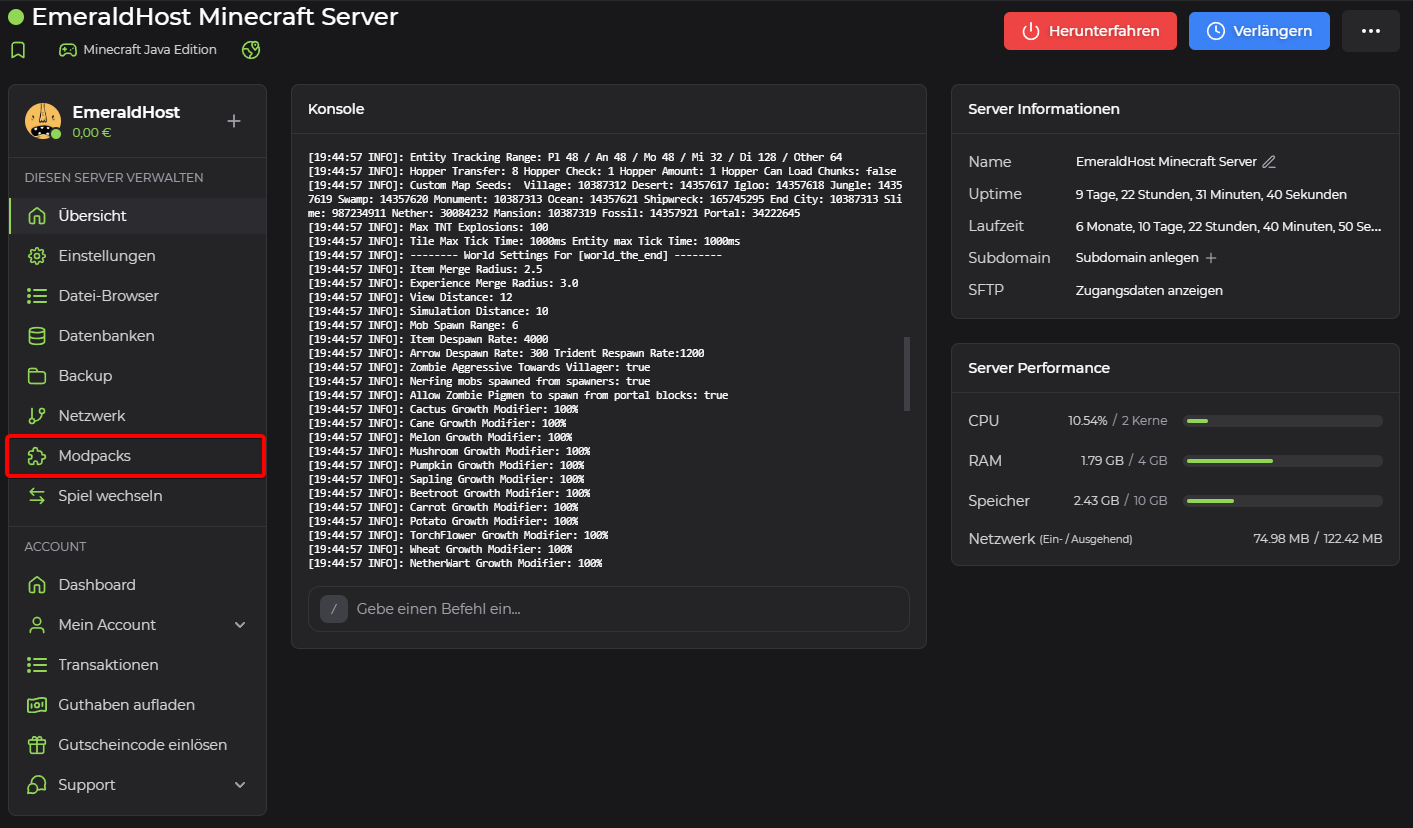
    Server management with the "Modpacks" entry highlighted in the sidebar

  3. Select new modpack
    Above the section "Installed modpack" you will find information about your current modpack installed on your Minecraft server.

    Under "Available modpacks" you have a wide selection of modpacks that you can easily install on your Minecraft server. For our example, we are using the modpack "All the Mods 6".

    Click on the modpack you want to install.
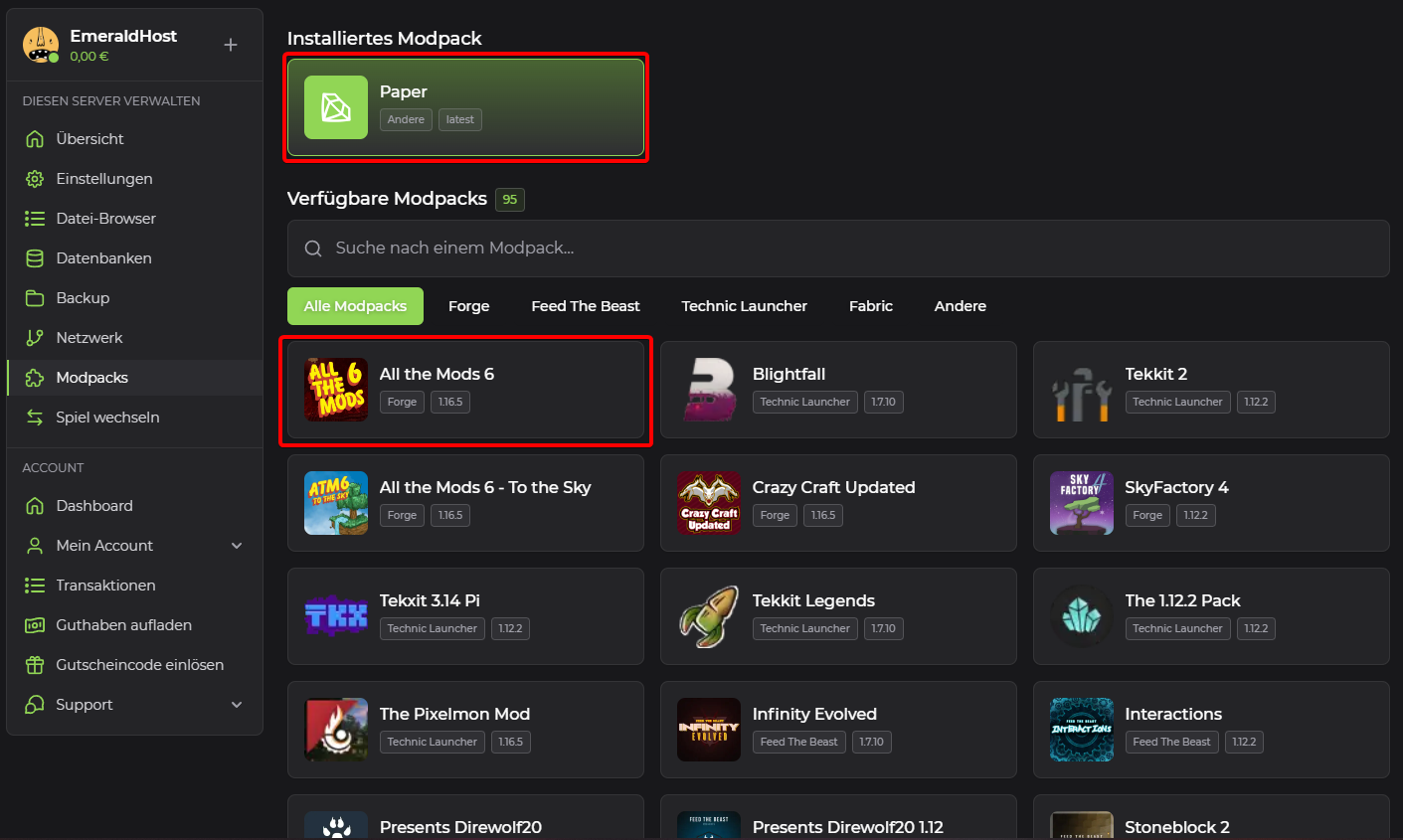
    List of available modpacks with "All the Mods 6" highlighted

  4. Confirm the installation
    In a new window, you will be informed that all existing files and backups will be deleted during this process. Confirm this message by clicking on "Install now". Your Minecraft server will be reset and the selected modpack will be reinstalled. The completion of the process will be displayed as soon as your Minecraft server is back online.
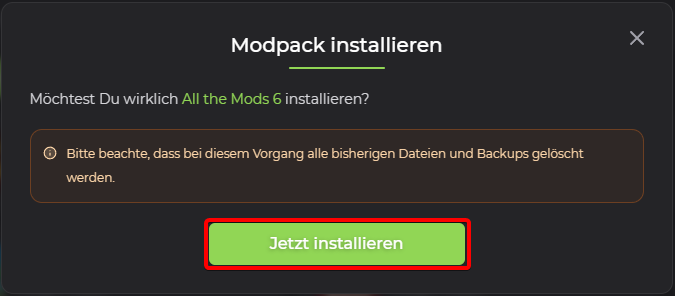
    Confirmation dialog "Install modpack" with the note about deleted files and the "Install now" button

Written byEmeraldHost Team
Last updated on Aug 20, 2026 Edit on GitHub

Did this article help you?

Your feedback helps us improve our guides.

Help shape the guides

€10.00 in credit for every new guide, €5.00 for every improvement.

Contact Support

Create a support ticket and our team will get back to you as soon as possible – personal and professional.

Go to Support
1257 members online

Discord Community

Connect with other players, get quick help from the community, and stay up to date with the latest news.

Join Discord
Minecraft Java Edition

Ready to get started?

Rent your Minecraft Java Edition Server now

Join our Discord community 1257 members online right now