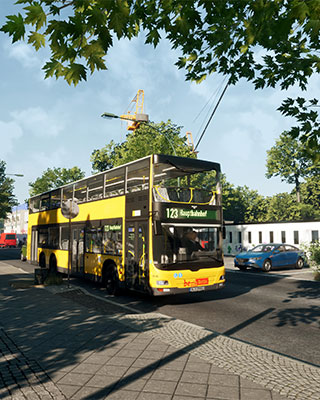

You can configure your The Bus server via the dashboard, the in-game admin menu and the ServerSettings.cfg file.
Settings in the Dashboard
In the dashboard you can adjust the following options:
| Setting | Description |
|---|---|
| Server Name | The displayed name of your server |
| Server Passwort | Password that players need to enter to join |
| Admin Passwort | Password for the admin menu. The default is BitteAendereMich, and the field cannot be empty. |
| Maximale Spieler | The maximum number of players on the server |
| Serverliste | 1 = the server is shown in the public server list, 0 = the server is hidden there |
| Auto Update | 1 = the server is updated automatically on start, 0 = no automatic update |
-
Open the dashboard
Open the dashboard of your server. -
Open the settings
Navigate to the Settings. -
Change the value
Adjust the desired field. -
Save and restart
Save the setting and restart your server.
In-Game Admin Menu
You open the admin menu via the pause menu (protected by the admin password). It lets you configure, among other things, the map, operating plan and fleet:
| Setting | Description |
|---|---|
| Map | Select the active map |
| Operating plan | Set the operating plan for bus routes |
| Fleet | Set the available buses (fleet) |
You can find out how to change the map, operating plan and fleet in detail in the guides Change Map, Change Operating Plan and Change Fleet. To use a map from a DLC, see Add DLC Map.
Other Settings in the ServerSettings.cfg
The dashboard does not overwrite any other entries in /TheBus/Settings/ServerSettings.cfg. You can change these directly in the file:
-
Stop the server
Stop your server via the dashboard. -
Connect via SFTP
Connect to your server via SFTP. -
Edit the file
Open the file/TheBus/Settings/ServerSettings.cfg(JSON format) and change the desired value. -
Start the server
Save the file and start your server again.
Available Commands
You enter the following commands in the in-game chat with a leading slash, e.g. /list. You need Owner or Admin permissions for this, see Add Admin.
| Command | Description |
|---|---|
/list |
Show players |
/kick |
Kick a player |
/exit |
Close the server |
/stop |
Close the server |
/ban |
Ban a player |
/unban |
Unban a player |
/tempban |
Ban a player for some time |
/send |
Send a message to the chat |
/say |
Send a message to the chat |
/clearBusses |
Delete uncontrolled buses on the map |
/mod |
Turn a player into a moderator |
/admin |
Turn a player into an admin |
/user |
Turn a player into a regular player (User) |
/whisper |
Send a private message to another player |
/operatingPlan |
Set the operating plan |
/fleet |
Set the fleet |
/map |
Set the current map |
/reload |
Reload the server |
/date |
Set the current date |
/time |
Set the current time |
/useRealTime |
Enable the real time (UseRealTime) |
/weather |
Set the weather |
/mapList |
Show available maps |
/tp |
Teleport a player to the coordinates x y z |
/tpd |
Teleport a player directionally by x y z |
/commands |
Show all commands |
/mute |
Mute a player for the entire server |
/unmute |
Unmute a player for the entire server |
/spawnBus |
Spawn a bus at a stop |
/dlc |
Activate or deactivate a DLC |
/tickets |
Change the ticket chance (0 to 100) |
/traffic |
Change the traffic density |
/aiBus |
Enable or disable AI buses |
/version |
Print the version |
/tickrate |
Log the tickrate every 10 seconds |
You assign the Owner rank with /owner <playername>. This command comes from the official server guide by TML-Studios and does not appear in the output of /commands. For more details, see Add Admin.
If your server does not run as expected, the guide Troubleshoot Server will help you.